Why Can’t I Connect My Tuya Smart Light to WiFi?

Time:2026-10-13 Author:Charlotte
0%

A Tuya smart light can seem simple to install, yet WiFi problems often appear during the final setup step. The bulb may flash correctly, but the Tuya Smart app may still show “connection failed.” This usually involves network compatibility, incorrect pairing mode, weak signal, or missing phone permissions. Understanding these details can save time and prevent unnecessary resets.

This guide explains how to connect tuya smart light to wifi through practical, reliable troubleshooting steps. It covers 2.4 GHz network requirements, Bluetooth-assisted pairing, router distance, app permissions, and reset procedures. Keep the bulb within a few meters of the router during setup. Check the WiFi password carefully. Small errors matter.

In real installations, a light may connect successfully after moving the phone closer to the router. However, that solution does not always work. Some dual-band routers automatically switch between 2.4 GHz and 5 GHz networks, confusing the pairing process. Temporarily separating these networks can help, but router settings vary by manufacturer. I have also found that users often reset the bulb too quickly, before checking whether the app has location or local-network access.

The troubleshooting process below focuses on safe, reversible changes. It avoids unsupported firmware modifications and explains when the router, bulb, or Tuya app may be responsible. Results can differ between models. That limitation matters. By checking each condition carefully, you can identify the real cause instead of repeating the same setup attempt.
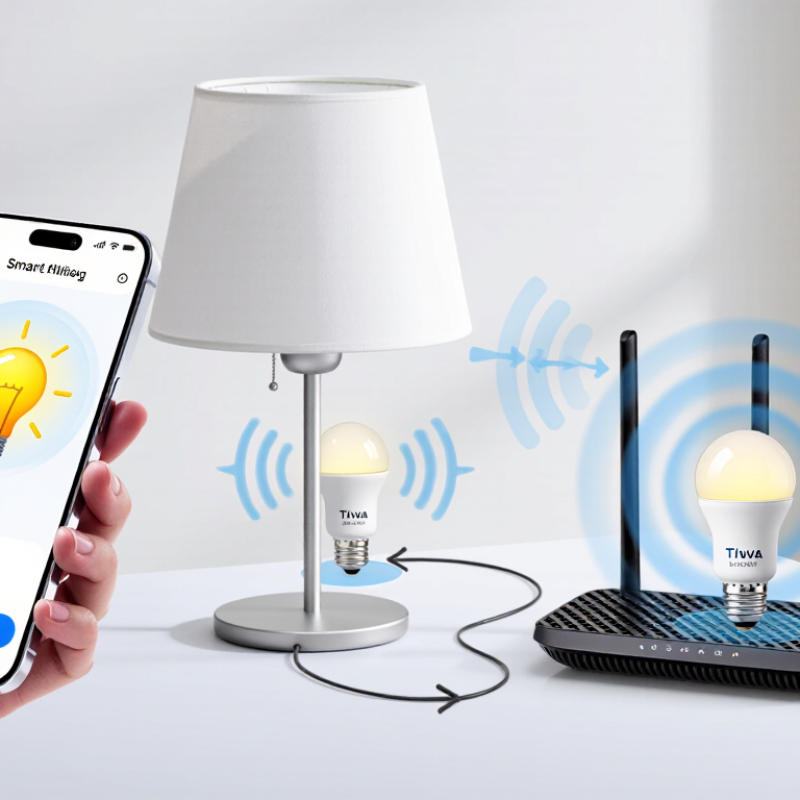
Why Can’t I Connect My Tuya Smart Light to WiFi?

Tuya’s 2.4 GHz Requirement: Wi-Fi Alliance Compatibility and Range Data

A smart light may fail to connect because its setup radio supports only the 2.4 GHz Wi-Fi band. This band offers better wall penetration than 5 GHz, although it usually provides lower throughput. The Wi-Fi Alliance explains that 2.4 GHz travels farther under similar indoor conditions. That difference matters when the light sits behind a concrete wall or near a metal fixture.

The numbers are practical, not absolute. IEEE 802.11 propagation models show that 5 GHz can experience about 6 dB more free-space path loss than 2.4 GHz at the same distance. In a typical home, 2.4 GHz may remain usable around 30 meters indoors, while 5 GHz can weaken sooner. The ITU-R P.1238 indoor model also shows that walls, floor materials, and device height can change coverage sharply. A router in a hallway may outperform one hidden inside a cabinet.

Try separating the network names temporarily. Select the 2.4 GHz network, enter the password carefully, and keep the light within three meters during pairing. Your phone may automatically switch bands, which can interrupt setup. Disable mobile data for a moment. Small detail, big difference. Also check whether the router uses WPA3-only security, because some older connected devices require WPA2 compatibility. These steps are not perfect. Congested channels, neighboring networks, and outdated firmware can still cause failures. A Wi-Fi scanner can reveal that hidden problem.

Power and Pairing Mode: Decode Tuya LED Status Signals Before Setup

Why Can’t I Connect My Smart Light to WiFi?

Power and Pairing Mode: Decode LED Status Signals Before Setup

A failed connection often begins before WiFi setup. Check that the bulb is firmly seated and the wall switch stays on. A dark bulb suggests a power problem, not a network problem. A steady light usually means normal operation, while a rapid blink often indicates pairing mode. However, LED signals can differ between models. Read the included instructions before relying on assumptions.

Tips: Reset the light only when necessary. Turn it off and on three to five times, using slow, even intervals. Stop when the LED begins flashing. Keep your phone close to the bulb, enable Bluetooth if required, and select a 2.4 GHz network when the setup screen requests it. Avoid placing the light behind thick walls or metal fixtures.

If the LED flashes slowly, the light may be waiting for an access-point connection. A fast flash can indicate standard pairing. No flashing usually means the reset timing was missed. I have made that mistake myself by switching too quickly. Try again with a timer. Also check your WiFi password carefully, especially spaces and capital letters. Temporarily moving the bulb near the router can reveal whether distance is the real issue. If setup still fails, restart the router and inspect whether other devices connect normally.

Why Can’t I Connect My Tuya Smart Light to WiFi? — Power and Pairing Mode: Decode LED Status Signals Before Setup

Observed Light Behavior Likely Device State What the Signal Usually Means Recommended Check or Action Expected Result
Steady light Powered and operating normally The lamp has power and may already be connected or running its default lighting state. Open the control app and check whether the light appears online. If it is missing, begin the reset and pairing process. The device is visible as online or becomes ready for setup after reset.
Slow blinking Standard pairing mode The light is broadcasting or waiting for WiFi setup credentials. Keep the phone connected to a 2.4 GHz WiFi network when required, enable Bluetooth and location permissions if requested, then add the light in the app. The light completes setup and stops blinking or changes to its normal connected status.
Fast blinking Alternative pairing mode The lamp is using a faster network configuration method, which may differ from the standard pairing mode. Use the app’s alternative or compatible pairing option. Confirm that the WiFi name and password are entered correctly. The app detects the light and transfers the network details successfully.
No light or no response No power, poor contact, or internal fault The bulb may not be receiving stable electrical power, or the fixture may be switched off. Turn on the wall switch, reseat the bulb after switching power off, test another compatible socket, and inspect the fixture for loose connections. The lamp turns on and provides a visible status signal.
Turns on but cannot enter pairing mode Reset sequence not recognized The light has power, but the power-cycle reset timing may not have been completed correctly. Use the fixture switch to cycle power according to the device instructions. Pause briefly between cycles and stop when the lamp begins blinking. The lamp starts a clear slow or fast blinking pattern.
Blinks briefly, then stops Pairing attempt timed out or failed The light may not have received valid credentials or may have lost communication with the phone during setup. Reset the light again, move it closer to the router, and repeat setup with a stable 2.4 GHz connection. The pairing indicator continues until setup finishes or reports an error.
App cannot find the light Discovery or permission issue The phone may be on a different network, or required local-network, Bluetooth, or location access may be disabled. Connect the phone and light to the same home network during setup. Allow the app’s requested permissions and temporarily disable mobile-data switching if necessary. The device appears in the nearby-device list.
Setup fails repeatedly Network compatibility problem Many smart lights support 2.4 GHz WiFi but do not support 5 GHz-only setup, enterprise authentication, or some captive-portal networks. Use a standard home 2.4 GHz network with a compatible security mode. Avoid guest networks that block device-to-device communication. The light accepts the network credentials and connects without a timeout.
Connected but frequently offline Weak or unstable WiFi connection The light may be too far from the router, affected by interference, or receiving inconsistent power. Improve router coverage, reduce obstructions, avoid placing the router behind metal surfaces, and check whether the wall switch remains on. The light remains online and responds consistently to commands.
Works manually but not remotely Local power is available; cloud or network access is incomplete The bulb can illuminate normally but may not have completed account, WiFi, or internet communication setup. Confirm that setup is complete, the account is signed in, the router has internet access, and the light is not isolated on a restricted network. Remote controls and schedules operate when the phone is away from home WiFi.

Router Channels 1, 6, and 11: Cisco Wi-Fi Guidance for Less Interference

When a smart light refuses to connect, the 2.4 GHz network is often crowded, not broken. The 2020 Annual Internet Report projected 29.3 billion connected devices by 2023, compared with 18.4 billion in 2018. More devices create more competing signals, especially in apartments with many nearby routers.

Set the router to channel 1, 6, or 11. These three 2.4 GHz channels are spaced to avoid overlapping when using 20 MHz widths, matching IEEE 802.11 deployment guidance. Channel 6 may look popular, but popularity is not the problem. A crowded channel is. Use a Wi-Fi analyzer and inspect the signal around your room. I often find channel 11 quiet near the router, yet weak beside the hallway. Walls change the result.

Keep channel width at 20 MHz. Wider settings can increase overlap and may confuse older light controllers. The 2023 Wireless Broadband Alliance industry report also identified interference management as a continuing challenge in dense residential networks. That fits real troubleshooting, though reports can simplify messy homes. Turn off band steering temporarily, then connect the light to the 2.4 GHz network. Move the light within three meters of the router during setup. Small details matter. Avoid placing it beside a microwave, metal cabinet, or cordless phone base. If the connection still fails, test channel 1, 6, and 11 separately, allowing several minutes for each change.

WPA2 and DHCP Checks: IEEE 802.11 Security and Address Allocation

Why Can’t I Connect My Tuya Smart Light to WiFi?

A smart light may fail before authentication, or after it. WPA2 uses IEEE 802.11 security procedures to verify the network password and negotiate encryption. A wrong passphrase is common, but not the only cause. Check whether the router uses WPA2-Personal with AES-CCMP. Older mixed modes, enterprise authentication, or unsupported encryption can interrupt setup. Use the 2.4 GHz band when the device specification requires it. Keep the light near the access point during pairing.

DHCP is the next checkpoint. After successful WPA2 authentication, the light should request an address through DHCP. The process normally provides an IP address, subnet mask, gateway, and DNS server. If the DHCP pool is full, restricted, or disabled, the light may appear connected but remain unreachable. Look for a new lease in the router’s client table. An address beginning with 169.254 often suggests failed allocation. Restarting the router may help, though it is not a diagnosis.

The 2021 IoT Signals report surveyed 3,000 decision-makers and found that 97% identified security challenges in IoT adoption. That figure supports careful configuration, not random password changes. NIST guidance also recommends separating IoT devices from critical systems where practical. My own troubleshooting mistake was assuming “connected” meant “online.” It does not. Check the lease time, confirm the gateway, and test another device on the same network. If DHCP succeeds but cloud access fails, inspect DNS and outbound firewall rules. Some routers expose confusing labels, so screenshots and logs matter more than guesswork.

Why Can’t I Connect My Smart Light to WiFi? — WPA2 and DHCP Checks

IEEE 802.11 security and IPv4 address allocation are two important checks when a smart light cannot join a wireless network.

The chart shows the theoretical usable host capacity of the three private IPv4 address blocks defined by RFC 1918. A DHCP server normally assigns an address from one of these private ranges. If the device receives no address, check whether DHCP is enabled and whether the address pool is exhausted. For WPA2, verify that the access point accepts the correct network password and uses a compatible WPA2-Personal configuration with AES-CCMP encryption.

Tuya EZ Mode and AP Mode: App Permissions, Reset Timing, and Recovery

When a smart light refuses to connect, the problem is often setup timing, not a failed device. I have seen lights remain in the wrong pairing mode after several rushed attempts. In EZ Mode, the light usually blinks quickly while the app searches through your home WiFi network. Keep your phone close to the light and use a 2.4 GHz network if required by the device. Mobile data can also interfere with the process.

Check app permissions before resetting anything. Allow local network access, nearby-device discovery, Bluetooth, and location access when requested. Location permission may seem unrelated, but some phones restrict WiFi discovery without it. Disable any VPN temporarily. Then close and reopen the app. Small details matter.

If EZ Mode fails twice, try AP Mode. Press the reset button for the specified time, often five to ten seconds, until the blinking pattern changes. Wait a few seconds before starting AP setup. The app may ask you to join a temporary device hotspot, then return to the app manually. I once tapped “back” too quickly and canceled the connection. That mistake was easy to repeat. If the light shows no response, cut power briefly, restore it, and repeat the reset sequence. Avoid pressing the button continuously, because some models use different timing patterns. Check the device guide when the indicator behavior remains unclear.

FAQS

Why does my smart light need a 2.4 GHz Wi-Fi network?

The 2.4 GHz band usually travels farther and passes through walls better than 5 GHz. It is slower, though.

How close should the light be during setup?

Place the light within three meters of the router. Keep it there until pairing finishes. Distance matters.

Why does pairing fail when my phone changes Wi-Fi bands?

Your phone may switch between 2.4 GHz and 5 GHz automatically. Temporarily disable mobile data and separate network names.

Which 2.4 GHz channel should I try?

Test channels 1, 6, and 11 with a 20 MHz channel width. Use a Wi-Fi analyzer to find nearby congestion.

Can walls or furniture change the best channel?

Yes. Concrete walls, metal cabinets, and appliance locations can weaken signals. A channel that works near the router may fail in a hallway.

What security setting is usually compatible with older smart lights?

WPA2-Personal with AES encryption is often more compatible. WPA3-only settings may block older devices.

What does a DHCP problem look like?

The light may show as connected but remain unreachable. Check the router’s client list for a new IP address.

What does an address beginning with 169.254 mean?

It often indicates that the light did not receive an address from DHCP. Check the address pool, gateway, and router settings.

What should I check if Wi-Fi connects but the light stays offline?

Inspect DNS settings, outbound firewall rules, and the gateway. “Connected” does not always mean online. I learned that slowly.

Conclusion

If you are wondering how to connect tuya smart light to wifi, start by confirming that your router provides a 2.4 GHz network, since many smart lights cannot join 5 GHz networks. Check that the light has stable power and observe its status signal: a rapidly blinking light usually indicates pairing mode, while no signal may require a reset. During setup, keep the light near the router and use a simple network name and password.

For a more reliable connection, select a less crowded wireless channel, such as 1, 6, or 11, and confirm that WPA2 security and DHCP are enabled. In the app, allow local network, Bluetooth, and location permissions when requested. Try EZ Mode first; if pairing fails, reset the light according to its timing pattern and use AP Mode to connect through the light’s temporary network. Restarting the router and light before repeating setup can also resolve address or interference problems.

Charlotte

Charlotte

Charlotte is a seasoned marketing professional with a deep understanding of the company's portfolio and a passion for elevating its presence in the market. With a keen eye for detail and a commitment to excellence, she ensures that our professional blog is regularly updated with insightful articles......