Top Tips for Setting Schedules on Tuya Smart Lighting

Time:2026-09-28 Author:Oliver
0%

A Tuya lighting schedule can make a room feel ready before you enter it. Set the kitchen lights to brighten near breakfast, then let the hallway glow softly after sunset. Small changes can make daily routines easier. But a schedule that ignores real habits may become annoying fast.

For a useful starting point, create a schedule in the Tuya or compatible smart-home app, choose the light and weekdays, then set the on/off times and brightness. Menu names can vary by app version and device. Test the routine for several days. Does the bedroom light come on too early? Does daylight already brighten the living room? Adjust the timing rather than adding more automation.

Lighting and circadian-health researcher Dr. Mariana Figueiro’s work offers a relevant guiding idea. A practical paraphrase—not a verbatim quote—is: “Let light follow the day, not just the clock.” That principle can help when deciding how to set schedules for tuya smart lighting. Use brighter settings when you need clear task light, and gentler settings for evening wind-down. Check the schedule after daylight-saving changes, travel, or a shift in household routines. Keep it simple. One honest caveat: no preset schedule fits every home, and personal comfort matters. This guide focuses on clear setup steps, thoughtful timing, and small adjustments you can actually maintain.
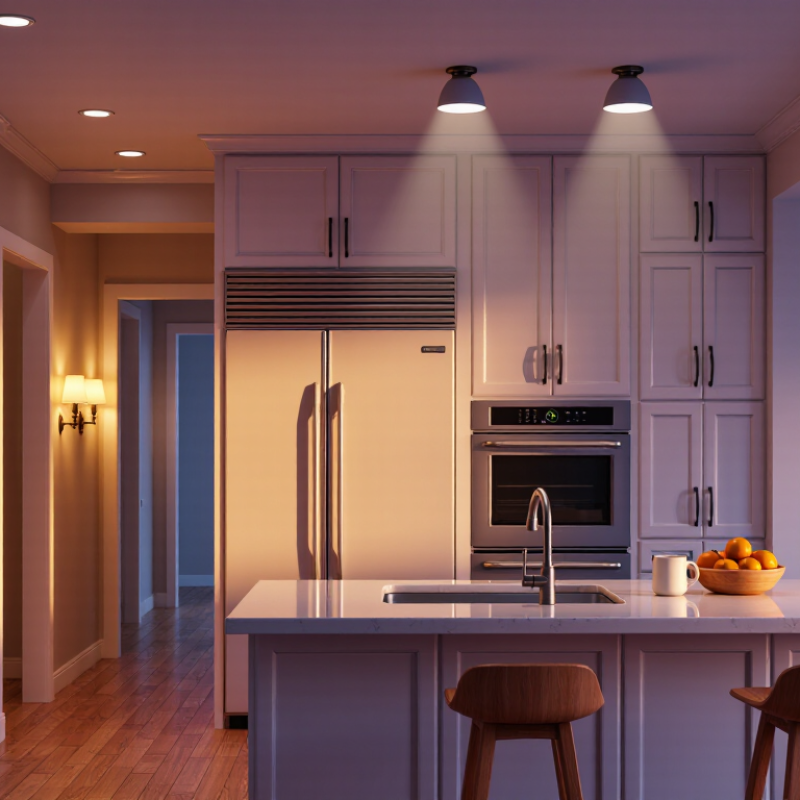
Top Tips for Setting Schedules on Tuya Smart Lighting

How Tuya Smart Lighting Schedules Work

A smart lighting schedule is a set of instructions tied to time or an outdoor event. You might set the hallway lights to turn on at 6:30 p.m. and dim at 10:00 p.m. Many systems let you repeat actions on chosen weekdays, so a weekday routine does not have to match your weekend. Simple enough.

Some schedules can follow sunrise or sunset instead of a fixed hour. This helps when daylight shifts through the year. The app usually needs your location and time zone to calculate those changes correctly. Check both if a light turns on unexpectedly early. A schedule may also control brightness, color temperature, or a saved lighting scene, depending on the device.

Schedules generally run through the app, a hub, or the light itself; the exact behavior varies by setup. If your internet drops, a locally stored schedule may still work, while a cloud-based one might pause. Test a new routine for a few days. Watch whether manual changes affect the next scheduled action, since some systems restore the programmed setting and others keep your adjustment. I still find this part easy to overlook. A short fade can feel gentler than an instant flash, especially in a bedroom, but not every bulb supports gradual changes. Keep the timing practical, and revise it when your daily routine changes.

What to Prepare Before Creating a Lighting Schedule

Before creating a lighting schedule, check that each light is connected and responds to manual controls. Test it from the spot where you normally use it. A lamp that works beside the router may struggle in a back bedroom. Note each light’s room and purpose, such as “hallway, evening” or “desk, weekday mornings.” Clear names make schedules easier to review later. Small detail, big help.

Write down the routine you want the lights to follow, including days, start times, and brightness levels. A kitchen light might turn on at 6:30 p.m. at 70 percent, while a bedside lamp dims at 10 p.m. Check your device’s time zone and whether it follows local time changes. Menu options vary, so confirm how your lighting system handles offline connections and power loss. If dimming matters, test the bulb at a low setting before building a schedule around it. I find plans often look neat on paper, then feel too bright in a real room. Leave room to adjust them after a few evenings.

How to Create a Schedule in the Tuya Smart App

Open your smart lighting app and select the bulb or room you want to control. Find Schedule, Timer, or Automation; menu names can differ by app version. Tap Add, choose a start time, and select the days it should repeat. For example, set the hallway light to turn on at 6:30 p.m. from Monday through Friday.

Choose the action, such as turning the light on, setting its brightness, or selecting a warm color. Save the schedule, then check that the bulb appears online and the correct time zone is set. Test it once. A one-minute test schedule can reveal a missed setting before you rely on it. If your app offers sunrise or sunset timing, check whether it adjusts automatically through the year.

Schedules may not match real life perfectly. A weekday routine can change, and a manually switched light may behave differently depending on the app’s settings. I’d start with one room and a simple on-and-off schedule, then adjust after a few days. Keep the light’s power switch on; cutting power at the wall can prevent it from receiving the scheduled command. Check the clock.

How to Set Repeat Days, Actions, and Timing

A useful lighting schedule starts with a clear routine, not a long list of settings. Choose the days when it should repeat: weekdays for a morning wake-up, or selected evenings when you are usually home. Check each day before saving. One missed toggle can leave a room dark on Friday.

Set the action to match the moment. A bedside lamp might turn on at 6:30 a.m. at low brightness, while a hallway light can switch off after bedtime. If color temperature is available, warmer light often feels calmer in the evening. Keep the first version simple. I sometimes add too many actions, then forget which one caused the odd result.

For timing, use a fixed clock time when your routine is steady. Sunrise or sunset options can be more convenient, but confirm the location and any available offset. A ten-minute delay may fit your household better than the exact sunset. Save the schedule, then watch it run for a few days. If the light fires twice, check for overlapping schedules or a separate automation. App layouts vary, so verify the final settings on your own device.

How to Edit, Disable, or Troubleshoot a Schedule

To edit a lighting schedule, open the app and select the light or group it controls. Find the schedule list, then change the start time, active days, or brightness. Check whether the action is set to turn the light on or off; it is easy to adjust the time and overlook the action. Save your changes, then test the schedule with a start time a few minutes ahead. Menus can differ between app versions, so look for a clock or automation icon if the labels do not match.

Need a break instead?
Most schedules can be paused with an enable switch beside the entry. Turn it off to keep the rule for later, or delete it if you no longer need it. I once changed a weekday schedule but left the weekend setting untouched, which made the light seem unpredictable. Check every selected day before saving.

If a schedule fails, confirm the light is online and responds to a manual command. Check the phone’s time zone and the schedule’s selected days. Also look for another rule that sets the same light differently around the same time. A brief power interruption or weak connection may delay an action. If the schedule still does not run, disable and re-enable it, then test again. Keep a note of the original settings before making several changes; troubleshooting is clearer when you change one thing at a time.

Top Tips for Setting Smart Lighting Schedules

Example evening schedule: set a brightness level for each time to create a gradual wind-down.

To edit a schedule, update its time or brightness level. Disable it when you want to pause the routine without deleting it. If it does not run as expected, check that the schedule is enabled, the selected days and time zone are correct, and the light is online.

FAQS

What should I check before creating a lighting schedule?

Test each light manually from its usual room. A bulb that works near the router may struggle in a back bedroom.

What details should I write down?

Note each light’s room, purpose, active days, start time, and brightness. “Hallway, evenings” is easier to recognize than “Light 2.”

How can I choose useful schedule times?

Match the schedule to a real routine. For example, set the kitchen light to turn on at 6:30 p.m. at 70 percent brightness.

Why should I check the time zone?

The schedule depends on the device clock. Confirm its time zone and how it handles local time changes.

How do I create a basic lighting schedule?

Select a light or room, then open its schedule or automation settings. Choose a time, repeat days, and an action. Save it.

Should I test the schedule before relying on it?

Yes. Try a one-minute test schedule to catch missed settings. Check that the light is online. Small test, useful clue.

What should I test if dimming is part of the plan?

Set the bulb to a low brightness before scheduling it. Some settings may feel too bright in the actual room.

Can a schedule fail if the wall switch is off?

Yes. Keep the light’s power switch on so it can receive scheduled commands. Paper plans can lie. Adjust after a few evenings.

Conclusion

A well-planned lighting schedule can make everyday routines simpler and help your home feel more comfortable. Before creating one, make sure your smart lights are connected, named clearly, and set to the correct time zone. In the app, open the schedule or automation section, choose the light or group you want to control, and select when the action should happen. To understand how to set schedules for tuya smart lighting, consider the full routine: choose repeat days, set a specific time or a sunrise or sunset trigger when available, and decide whether the lights should turn on, turn off, or change to a preferred setting.

After saving, check that the schedule appears as expected and test it if the app allows. You can later adjust its timing, selected lights, or actions, or temporarily disable it without deleting it. If it does not run, confirm the device connection, time zone, repeat-day settings, and schedule status, then save any changes.

Oliver

Oliver

Oliver is a seasoned marketing professional with a wealth of expertise in driving brand awareness and engagement. With a deep understanding of our company's product offerings, he consistently delivers high-quality content that enriches our professional blog. His insights not only shed light on......